Mobile Experiences
Overview
Experiences now work on mobile: you can build personalised experiences for a brand’s mobile app from the same place you already build them for the web.
Why it’s used
Until now, the Experiences feature only supported websites. Brands whose customers spend most of their time in the app had no way to personalise that journey from FirstHive. With mobile support, one team can design experiences for both web and app in a single workflow, without a separate tool.
How it works
- You build a mobile experience in the same builder you use for web.
- Selecting Mobile tells FirstHive the experience is for the brand’s mobile app.
- Options that only apply to the web are hidden when Mobile is selected, so you only see settings that work in the app.
Steps
Step 1: Start a new experience
- Go to All Experiences.
- Click + Create Experience.
Step 2: Add basic information
- Choose an Objective, for example Mobile App Downloads.
- Enter a Name for the experience. The ID is generated for you.
- Add Tags and an Experience description if needed.
- Click Next.
Step 3: Choose the audience and target the mobile app
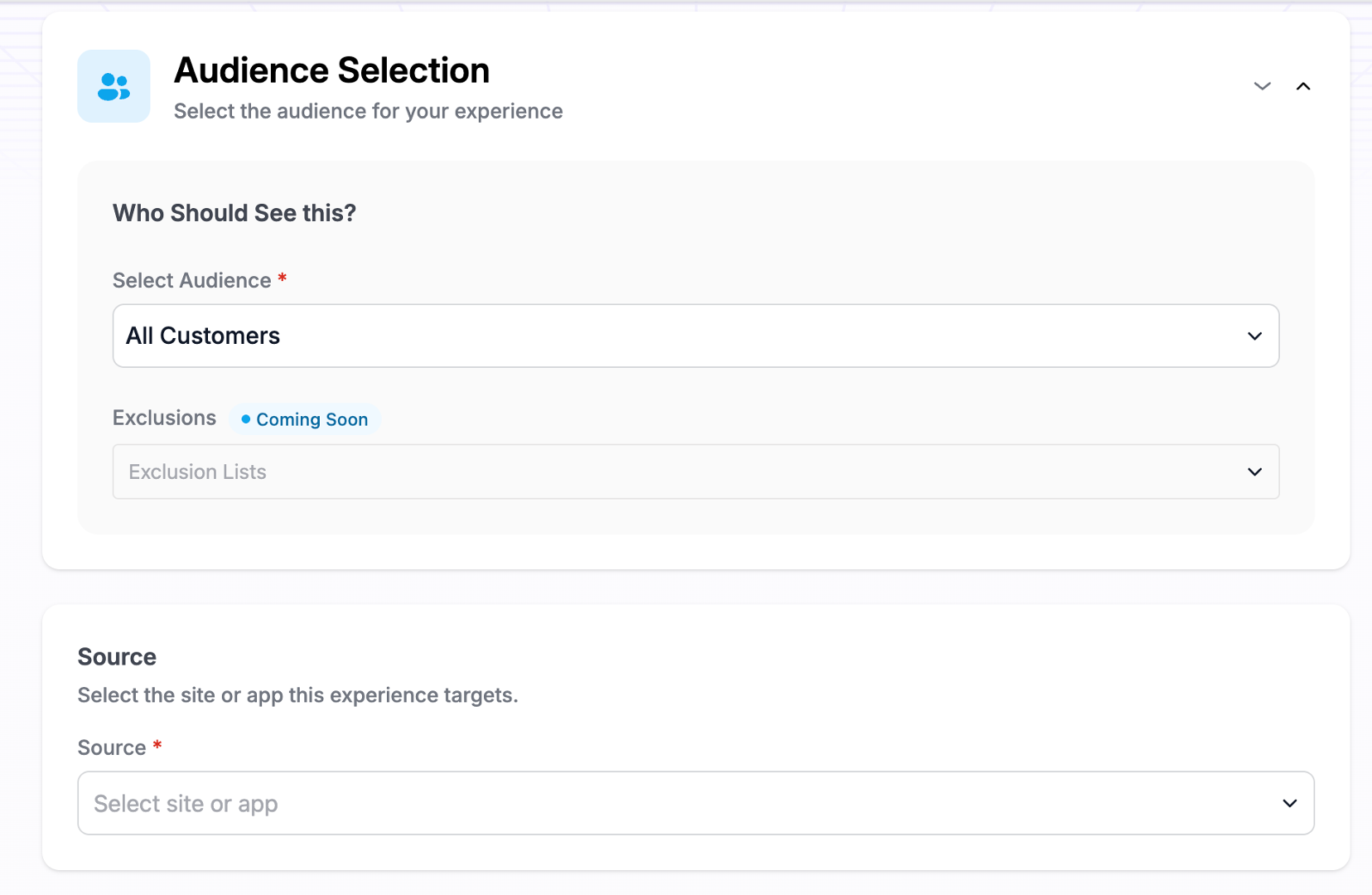
- Under Who Should See this?, pick an audience in Select Audience, for example All Customers. (Exclusions are coming soon.)
- Under Source, select the brand’s mobile app. This is what makes it a mobile experience. Web-only options are then hidden.